
Table Digits documentation
This page covers installation, requirements, and how a run works.
The full reference lives inside the panel itself, under Instructions. It ships with the version you are running, so it always describes the build on your machine.
Requirements
- Adobe InDesign 20.3 or later
- Windows or macOS
Table Digits is a UXP plugin that requests no permissions at all – no network, no file system, no clipboard – so nothing it reads can leave your computer.
Installing
- Install Table Digits from the Adobe marketplace, through the Creative Cloud desktop application or Adobe Exchange.
- If InDesign was running during the install, restart it.
- Open the panel from Plug-Ins → Table Digits → Table Digits.
- Dock the panel or leave it floating. Table Digits remembers its size and position.
If the menu entry is missing after a restart, confirm in the Creative Cloud desktop application that the plugin finished installing and that it is enabled for the InDesign version you opened.
Before you start
Numeric columns must be left-aligned
Text in numeric table columns must be left-aligned. Table Digits positions values using a decimal tab, which will not work correctly with another paragraph alignment.
Merged cells
Merged cells can create a structure that is not obvious at first glance. Such merges may prevent operations from being performed correctly in a column. In that case, first clean up the table structure and then run Table Digits again, or process individual columns separately. You are responsible for selecting the correct cells and for the validity of custom GREP rules.
Quick start
- Select at least one table cell. Placing the text cursor inside a cell does not activate the Run button. Choose whether to align to a comma or period, set the outdent options, and enable or disable the required additional options.
- Configure the rules for each normalization in Preferences.
- Click Run.
Processing order
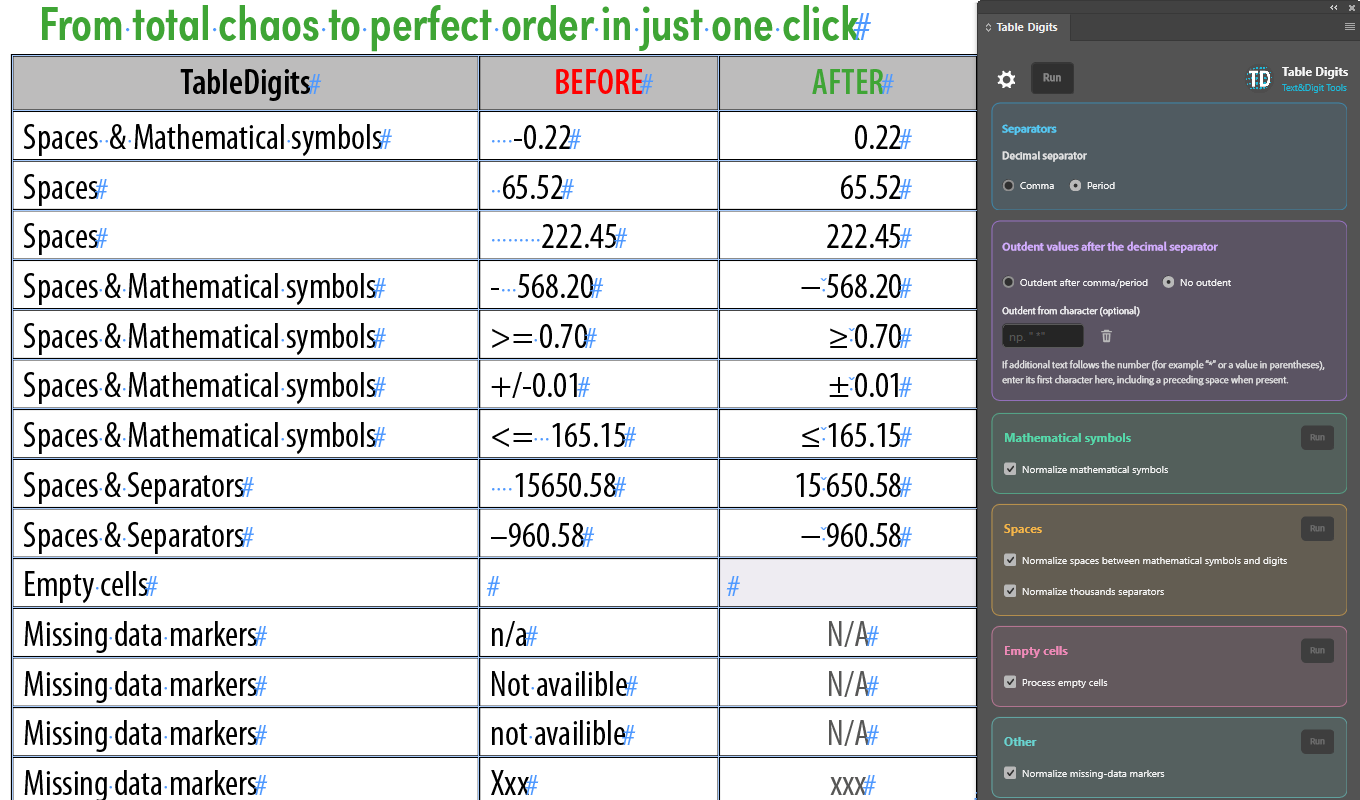
Table Digits first cleans up numeric data and spacing, then normalizes the selected mathematical symbols, spaces, and thousands separators. Finally, if enabled, it processes missing-data markers and empty cells.
Operation scope
Basic formatting applies to the selected cells. For thousands separators, however, the plugin checks the entire table so that four-digit and longer numbers remain consistent. Enabled post-processing for empty cells and missing-data markers also applies to the entire table.
The Run button in the header performs the complete process using the enabled options. A Run button in the upper-right corner of a coloured section performs only that section's actions, without changing the saved checkbox states.
Post-production actions – processing empty cells and normalizing missing-data markers – can be run separately with their section buttons. If their checkboxes are selected, however, they run automatically at the end of the complete process when the main Run button is clicked.
Additional options
| Option | What it does |
|---|---|
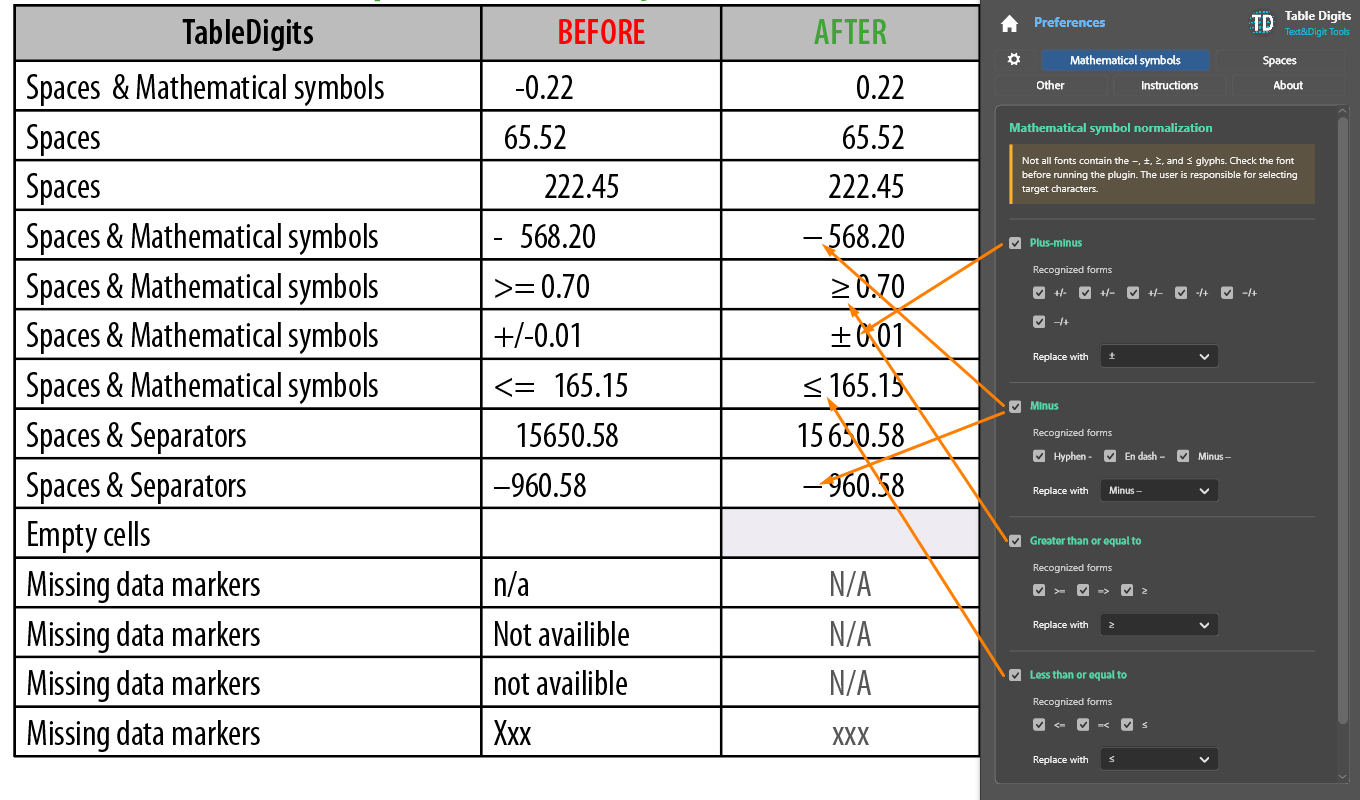
| Mathematical symbols | Normalizes selected forms of symbols preceding numeric data, according to the rules configured in Preferences. |
| Spaces between symbols and digits | Inserts the selected type of space, or removes spacing, between an initial mathematical symbol and the first digit. |
| Thousands separators | Standardizes digit grouping within the selection. Before processing, it checks the entire table so that four-digit numbers are handled consistently with numbers containing five or more digits. |
| Empty cells | At the end of the process, finds empty cells throughout the table and optionally applies the selected cell style. |
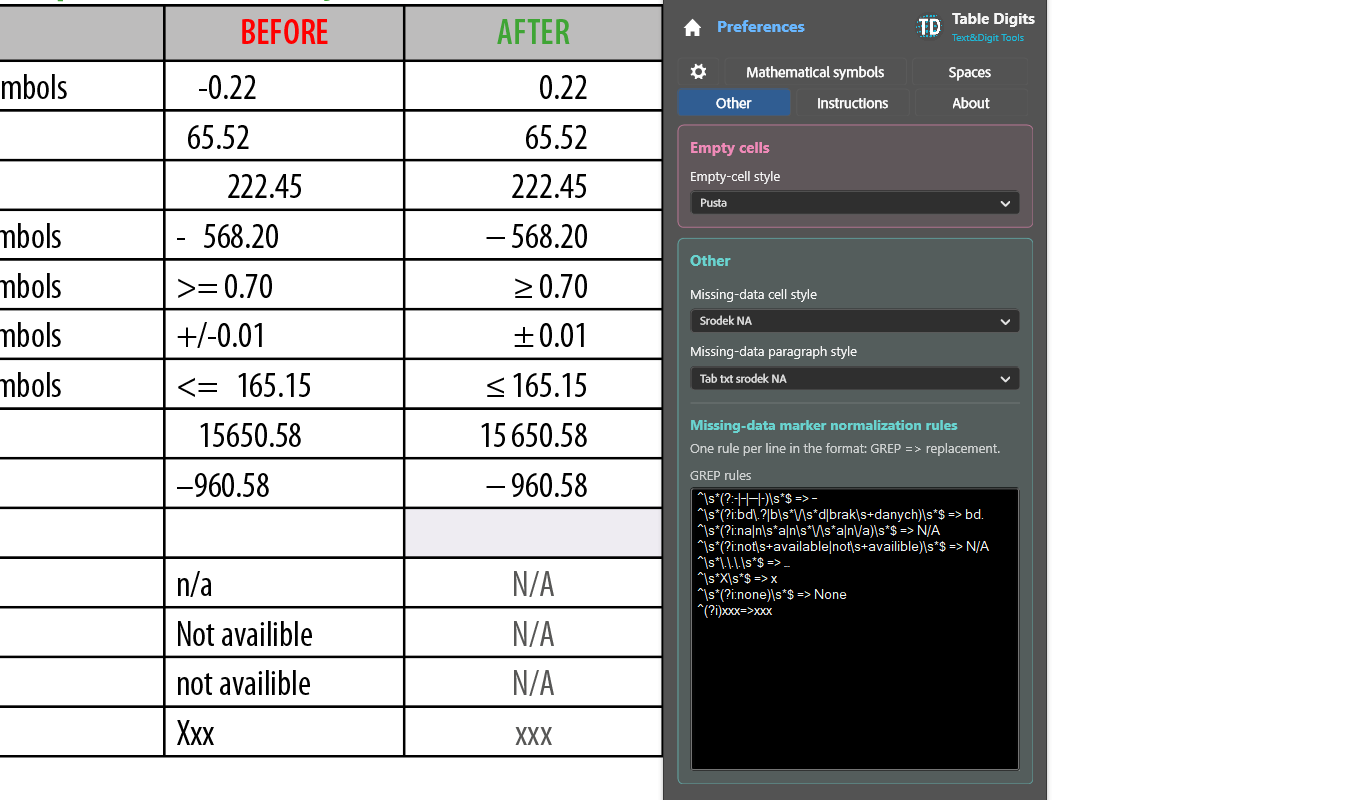
| Missing-data markers | At the end of the process, normalizes entries such as "not available" or "N/A" throughout the table using GREP rules, and optionally applies the selected cell style. |
Important
- Before replacing mathematical symbols, check that the selected font contains the required glyphs.
- Enter custom rules one per line as GREP => replacement. Leaving the part after the arrow empty removes the found text.
- Cell-style lists are read only when you open the relevant tab. If a saved style is not present in the document, the plugin does not change the cell style.
- Before using the plugin on a production document, test it on a copy or a small part of the table.
Getting help
Write to support@textanddigit.com. Please include your InDesign version, your operating system, the Table Digits version from the About tab, and what you expected to happen alongside what happened instead.